
You have recorded a video, but the raw footage does not look ready to publish. Maybe the clips need trimming, the audio is unclear, captions are missing, or you want to add transitions without spending hours learning complicated editing techniques. This is where choosing the best video editing software for beginners becomes important.
The challenge is not simply finding an editor with plenty of tools. You need software that matches your editing experience, runs properly on your computer, and helps you create the type of videos you actually want to publish. Some tools offer a simple timeline, while others provide ready-made templates, automatic captions, or AI video creation.
This guide compares 10 beginner-friendly video editors, including their features, limitations, pricing, and practical uses, so you can understand what each one offers before choosing.
What Is Video Editing Software?
Video editing software is a tool that helps you turn recorded clips into a complete video. You can cut unwanted footage, arrange clips, add music, insert text, and apply transitions or effects. Some editors also include features such as automatic captions, background removal, and AI-assisted editing.
Key Points of Video Editing Software
- Video Clip Editing: Trim, split, merge, and rearrange clips to create a well-organised video.
- Text and Visual Effects: Add titles, subtitles, transitions, filters, and visual effects to improve video presentation.
- Audio Editing: Adjust background music, voiceovers, sound effects, and audio levels for clearer sound.
- Platform-Specific Formats: Resize videos for YouTube, Instagram Reels, YouTube Shorts, and other platforms.
- Export Options: Save completed videos in different resolutions, formats, and quality settings.
- Templates and AI Tools: Use ready-made templates and AI-powered features to simplify editing and reduce manual work.
Why Do You Need Video Editing Software?
Create Engaging Videos
A video can lose viewers when it contains long pauses, repeated scenes, or unrelated clips. Editing lets you remove these parts, arrange the important moments, and add visuals that keep the message clear. This is useful for creators who want viewers to stay interested from the opening to the final scene.
Improve Video Quality
Even a good recording may need adjustments before it is ready to publish. You can correct colours, adjust brightness, improve audio levels, and remove unwanted sections. These changes help make your video easier to watch without requiring professional recording equipment.
Add Effects, Transitions and Text
A plain sequence of clips may not explain your message clearly, especially in tutorials, product videos, and promotional content. Text overlays, transitions, and visual effects can highlight important information and connect different scenes. You can also add subtitles to make spoken content easier to follow.
Edit Videos for Different Platforms
A video made for YouTube may not fit Instagram Reels or YouTube Shorts because each platform uses different display formats. Editing software lets you change the aspect ratio, resize footage, and adjust the layout for each platform. This helps you reuse content without having to record everything again.
Save Time with Ready-Made Templates and AI Tools
Creating every title, caption, and transition manually can make editing a slow process. Templates provide ready-made layouts, while AI features can help with tasks such as caption generation, background removal, and video creation. These options are particularly useful when you have to publish content regularly.
What Features Should You Look For In Video Editing Software?
Easy-to-Use Interface
A clear interface makes it easier to find the timeline, preview window, editing tools, and export settings. Beginners should be able to complete basic tasks without searching through complicated menus. A simple workspace can make the first few editing projects less frustrating.
Video Trimming and Timeline Editing
Trimming and timeline editing are essential for removing unwanted footage and arranging clips in the right order. Check whether the software supports splitting, cropping, merging, multiple tracks, and precise clip adjustments. These controls become especially useful when you start working with longer videos.
Transitions, Filters and Effects
Transitions help connect scenes, while filters and effects can change the visual appearance of footage. Look at the range of built-in options and whether you can adjust their duration or intensity. A useful editor should offer creative control without making every edit unnecessarily complicated.
Audio Editing and Voiceovers
Clear sound matters just as much as picture quality. Look for options to adjust volume, remove or reduce noise, add background music, and record or import voiceovers. Separate audio tracks can also help when your video contains narration, music, and sound effects.
Export Quality and Format Support
Your editor should let you export videos in the resolution and format required by your publishing platform. Check support for common formats such as MP4, along with options for 720p, 1080p, and 4K where available. Also check whether the free version adds a watermark or limits export quality.
AI-Powered Editing Features
AI tools can assist with repetitive tasks such as generating subtitles, removing backgrounds, improving audio, and creating videos from text prompts. These features can save time, but their availability may depend on the software version or subscription. Check whether AI usage has credit limits or additional charges.
Free Plans and Pricing
A free plan can be enough to learn editing, but some tools restrict export quality, add watermarks, or limit premium effects. Compare the free version with the paid plan before choosing. Also check whether the listed price is monthly, annual, or a one-time payment.
List Of 10 Best Video Editing Software For Beginners
1. DaVinci Resolve
Website: https://www.blackmagicdesign.com/products/davinciresolve
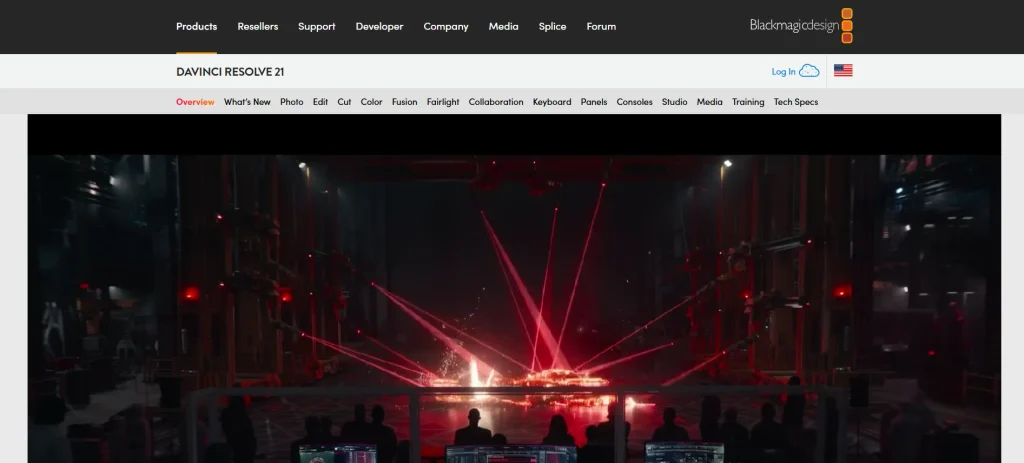
DaVinci Resolve brings video editing, colour correction, visual effects, motion graphics, and audio post-production into one application. Its professional editing workspace may take time to understand, but beginners can start with basic clip arrangement and gradually explore more advanced tools. It is particularly useful if you want to learn editing skills that can also support more demanding video projects.
Key Features
- Timeline-based editing with tools for trimming, cutting, and arranging clips.
- Colour correction and colour grading controls for adjusting video appearance.
- Fusion workspace for visual effects and motion graphics.
- Fairlight tools for audio editing, mixing, and sound adjustments.
Pros
- Offers a capable free version for learning video editing.
- Combines editing, colour, effects, and audio tools in one application.
- Supports advanced projects as editing skills improve.
- Provides detailed control over video and audio adjustments.
Cons
- The interface can feel complicated to first-time editors.
- Requires a reasonably capable computer for demanding projects.
- Some advanced features are limited to the Studio version.
- Learning its different workspaces can take time.
Pricing
- DaVinci Resolve Free: Available.
- DaVinci Resolve Studio: $295 (one-time payment).
Best For
- Beginners who want to learn detailed video editing and gradually move towards professional workflows.
2. VSDC Free Video Editor
Website: https://www.videosoftdev.com/
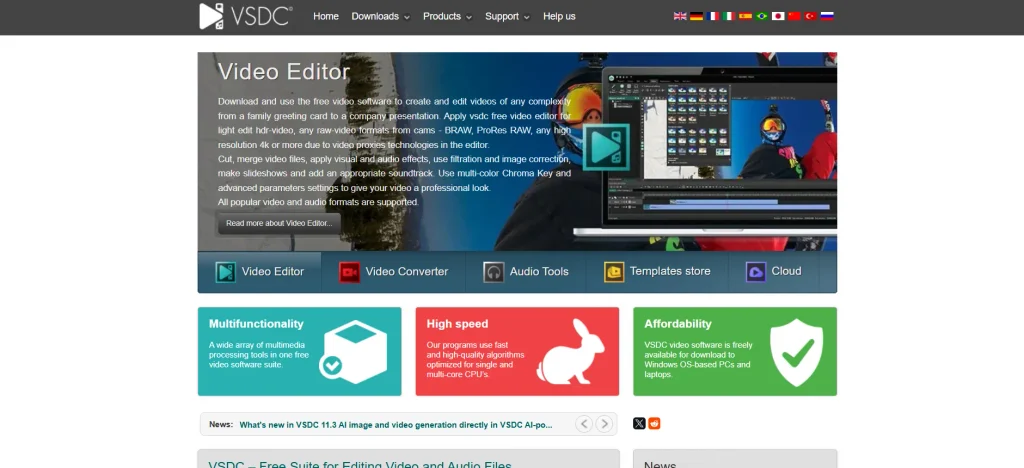
VSDC Free Video Editor is a Windows-based option among video editing software for beginners who want more control than a basic clip-cutting application provides. It supports non-linear editing, allowing users to arrange video and audio elements on a flexible timeline rather than following one fixed sequence. Its free version includes several useful editing tools, while the Pro edition adds capabilities for more advanced projects.
Key Features
- Non-linear editing for arranging video, audio, and visual elements.
- Video effects, filters, transitions, and colour adjustment tools.
- Chroma key support for replacing green-screen backgrounds.
- Tools for exporting videos in different formats and resolutions.
Pros
- Offers a free version with a wide range of editing tools.
- Supports non-linear editing and multiple visual elements.
- Includes effects and colour adjustment options.
- Suitable for Windows users who want to explore detailed editing.
Cons
- Available for Windows rather than all major desktop platforms.
- The interface may take time to understand.
- Some advanced features require the Pro edition.
- Beginners may need tutorials to use its more detailed controls.
Pricing
- Free Version Available.
- VSDC Pro: Paid annual subscription available
Best For:
- Windows users who want to learn non-linear editing without starting with a paid application.
3. OpenShot
Website: https://www.openshot.org/
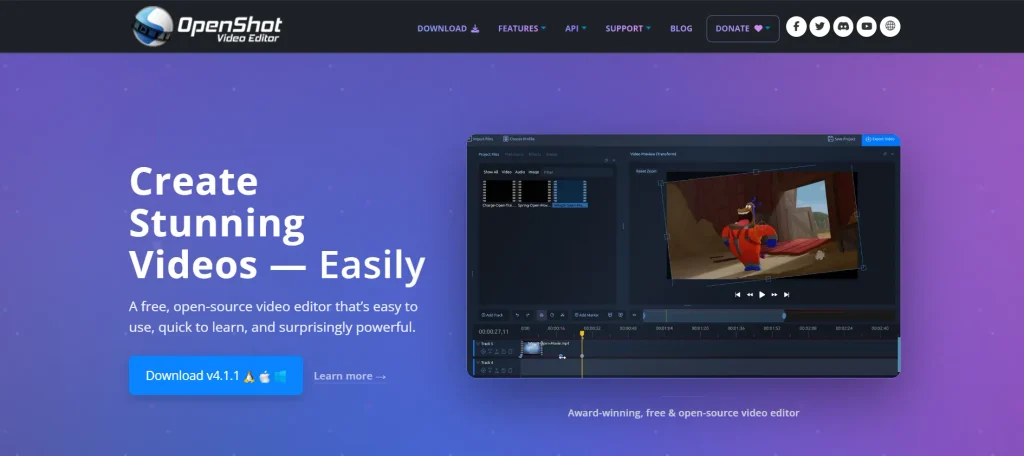
OpenShot is an open-source video editor designed for straightforward editing tasks. Its timeline allows you to place clips, images, and audio tracks together, making it useful for basic YouTube videos, presentations, and personal projects. Since it is completely free, beginners can practise editing without choosing a subscription or purchasing a licence.
Key Features
- Multi-track timeline for arranging video, image, and audio clips.
- Trimming, cutting, and clip arrangement tools.
- Video transitions, effects, and title creation.
- Keyframe animation for adjusting properties over time.
Pros
- Completely free and open-source.
- Supports Windows, macOS, and Linux.
- Provides essential timeline editing tools.
- Suitable for learning basic editing without a paid plan.
Cons
- Some editing operations may feel less refined than in paid software.
- Complex projects can be challenging to manage.
- Performance may vary depending on the computer and project size.
- It does not offer the same depth of professional tools as advanced editors.
Pricing
- OpenShot: 100% free.
- No payment or subscription required.
Best For:
- Beginners who need a free desktop editor for basic video projects.
4. CapCut Desktop
Website: https://www.capcut.com/
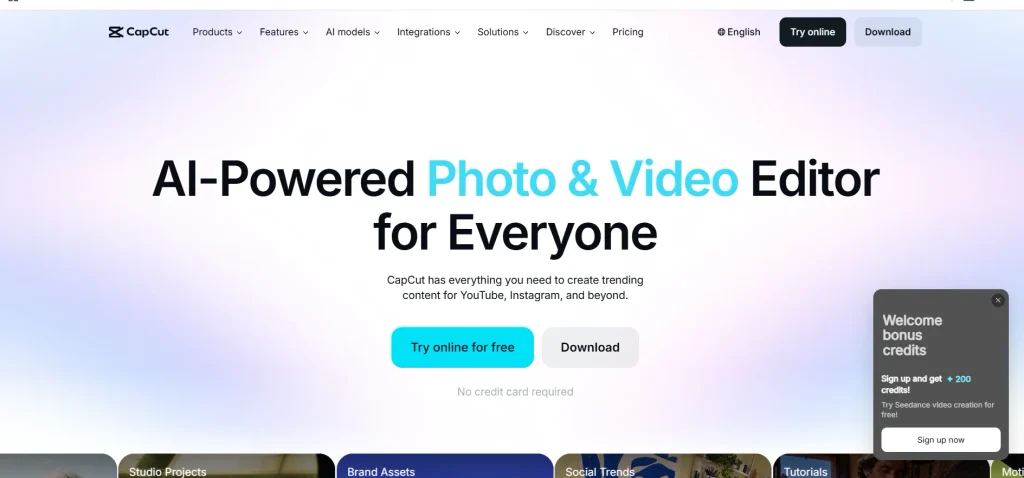
CapCut Desktop is built around quick editing for short-form videos and social media content. It combines a timeline editor with ready-made effects, text styles, captions, and tools that help creators prepare videos for platforms such as Instagram and YouTube. Its familiar editing approach makes it approachable for beginners who want to create content without learning a complex professional workflow first.
Key Features
- Timeline editing for trimming, splitting, and arranging clips.
- Auto captions and text styling for spoken videos.
- Effects, filters, transitions, and ready-made templates.
- Audio tools for music, voiceovers, and sound adjustments.
Pros
- Beginner-friendly editing workflow.
- Useful tools for Reels, Shorts, and other social videos.
- Includes captions, effects, and creative templates.
- Offers a free plan for getting started.
Cons
- Some effects and advanced features are available only in Pro.
- Feature availability can vary by region and device.
- Certain AI features may have usage limits.
- A large number of effects and templates can make editing feel cluttered.
Pricing
- Free Plan: Available.
- CapCut Pro: Starts at $9.99/month (pricing may vary by region).
Best For:
- Beginners creating Instagram Reels, YouTube Shorts, and other social media videos.
5. Kapwing
Website: https://www.kapwing.com/
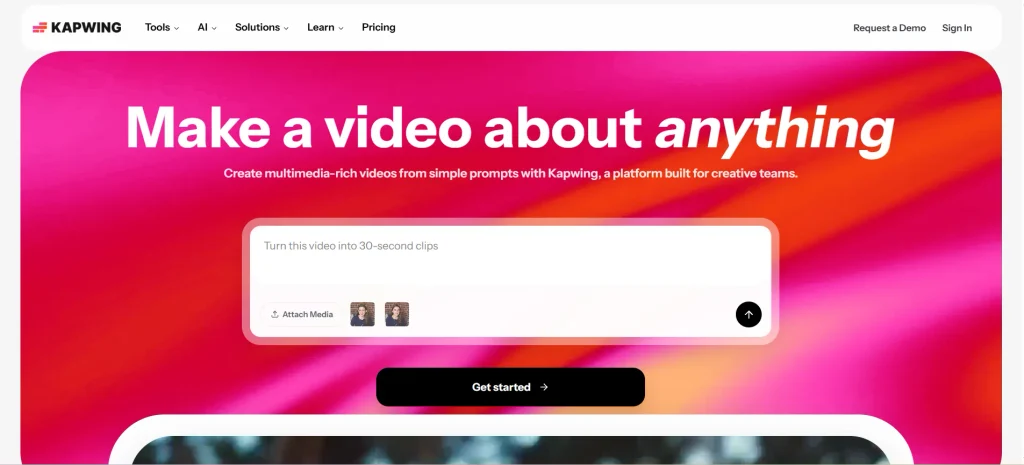
Kapwing is a browser-based option among video editing software for beginners, allowing users to edit videos without installing a traditional desktop application. It is useful for creators who regularly prepare social media clips, add subtitles, resize videos, or work with other people on shared projects. Its browser-based setup is convenient, although the free plan has export restrictions that you should check before using it for regular publishing.
Key Features
- Browser-based video editing with a timeline workspace.
- Automatic subtitles and text-based editing tools.
- Video resizing for different social media formats.
- Collaboration features for working on shared projects.
Pros
- No desktop installation required.
- Useful for quick social media editing tasks.
- Supports subtitles and video resizing.
- Makes collaborative editing easier through a browser.
Cons
- Requires a stable internet connection.
- Free exports include limitations such as a watermark.
- Free plan export quality and duration are restricted.
- Larger projects may be less convenient in a browser.
Pricing
- Free Plan: Available.
- Pro Plan: Starts at $16/month.
Best For:
- Beginners who prefer browser-based editing and need captions, resizing, or team collaboration.
Also read:
- Tools for Sales Automation
- Zapier Alternatives & Competitors
- Salesforce Alternatives
- Client Reporting Tools
6. Canva Video Editor
Website: https://www.canva.com/
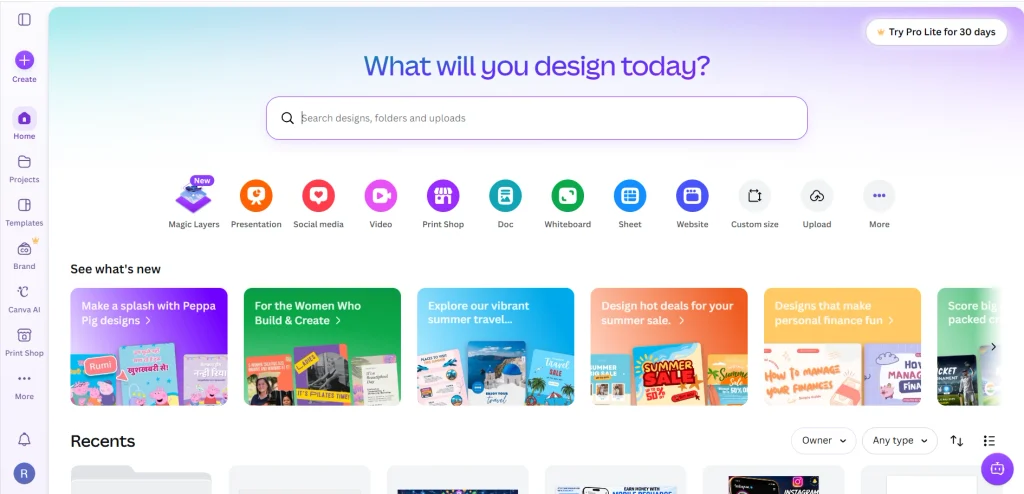
Canva Video Editor is useful when a video needs to combine footage with branded text, graphics, animations, and ready-made layouts. Its drag-and-drop workspace lets beginners build promotional videos, presentations, and social media content without learning a traditional editing interface. It is especially practical for people who already use Canva to create posts, thumbnails, or other visual designs.
Key Features
- Drag-and-drop video editing with ready-made templates.
- Text animations, transitions, and graphic elements.
- Stock media, design assets, and audio options.
- Video resizing and AI-assisted creative tools.
Pros
- Easy for beginners who are familiar with Canva.
- Large collection of templates and design elements.
- Useful for combining video with graphics and text.
- Supports the creation of content for different social platforms.
Cons
- Detailed timeline editing is more limited than in dedicated editors.
- Some premium templates and assets require a paid plan.
- Advanced editing controls may not meet professional requirements.
- Certain AI features and assets have plan-based restrictions.
Pricing
- Free: ₹0/year.
- Pro Lite: ₹1,590/year.
- Pro: ₹4,000/year.
- Business: ₹6,800/year per person.
Best For
- Beginners creating template-based promotional videos, social media content, and presentations.
7. Adobe Express
Website: https://www.adobe.com/express
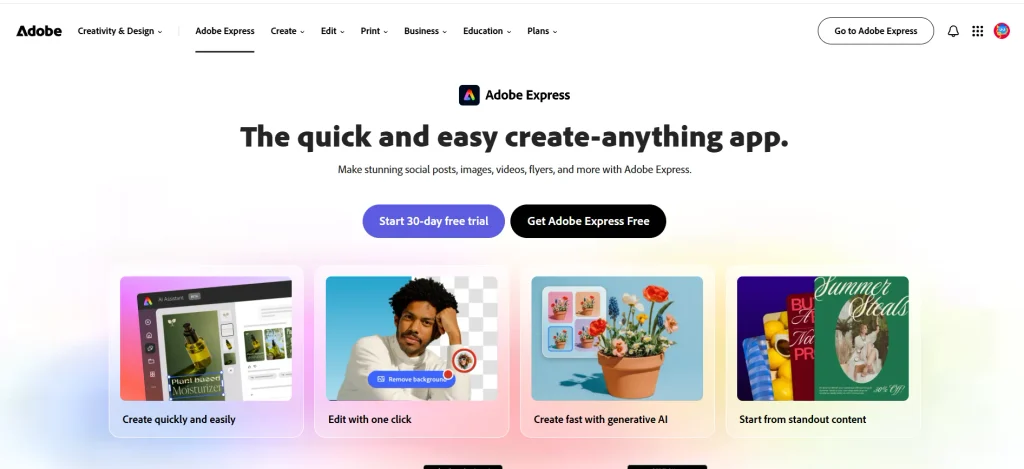
Adobe Express is designed for people who need to create polished visual content without working through a complicated editing setup. Its video tools, templates, text elements, and Adobe Stock assets can help beginners prepare short promotional clips and social media videos. It is a practical option when video editing is only one part of a wider content creation workflow.
Key Features
- Ready-made video templates for social media and promotions.
- Tools for trimming clips and arranging visual content.
- Text, animation, and design elements for videos.
- Access to Adobe Stock assets and selected AI-powered features.
Pros
- Simple workspace for quick video creation.
- Useful templates for promotional and social content.
- Combines video editing with graphic design tools.
- Offers a free plan for basic creative work.
Cons
- Advanced features and premium assets require a subscription.
- Less suitable for complex multi-track editing.
- Some features depend on an internet connection.
- Users may need other software for detailed audio or colour work.
Pricing
- Adobe Express Free: ₹0.
- Adobe Express Premium: ₹797.68/month (including GST).
- 30-day free trial available for Premium.
Best For:
- Beginners who create promotional videos and social media designs alongside other visual content.
8. InVideo AI
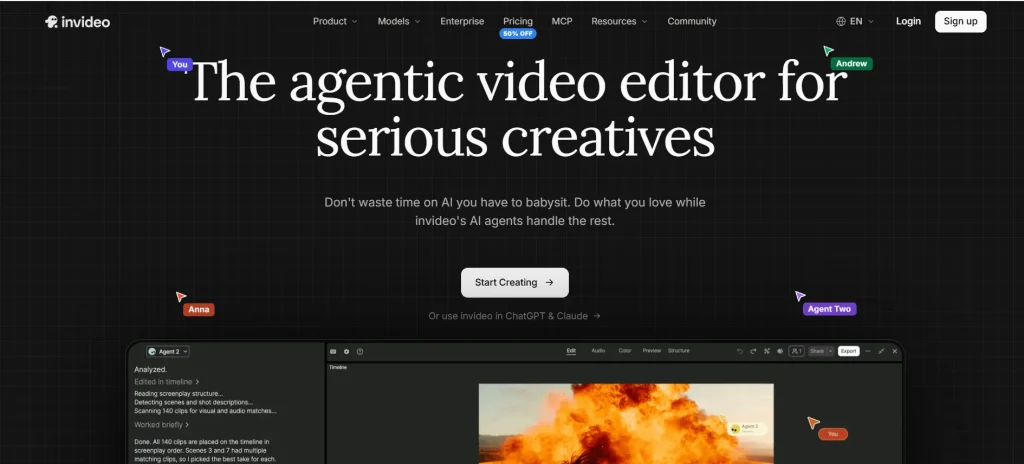
InVideo AI takes a prompt-based approach to video creation, making it a useful option when comparing video editing software for beginners. Instead of building every scene from scratch, users can provide a topic or script and let the platform generate a video using visuals, voiceovers, and other elements. It can be useful for beginners who need to turn written ideas into video content, but they should review the generated footage and narration before publishing.
Key Features
- Text-to-video generation from prompts or scripts.
- AI-generated voiceovers and narration.
- Stock media and visual suggestions for scenes.
- Editing options for adjusting generated video content.
Pros
- Helps turn written ideas into video drafts.
- Reduces the need to arrange every scene manually.
- Offers voiceover and stock-media options.
- Useful for producing videos without advanced editing experience.
Cons
- AI-generated scenes may not always match the intended message.
- Results may need manual correction and review.
- Paid plans use credits for AI generation.
- Less suitable when precise frame-by-frame editing is the main requirement.
Pricing
- Basic: $4/month (190 credits/month).
- Pro: $15/month (1,000 credits/month).
- Ultra: $40/month (3,000 credits/month).
Best For:
- Beginners who want to create draft videos from text prompts, scripts, and AI-generated voiceovers.
9. Wondershare Filmora
Website: https://filmora.wondershare.com/
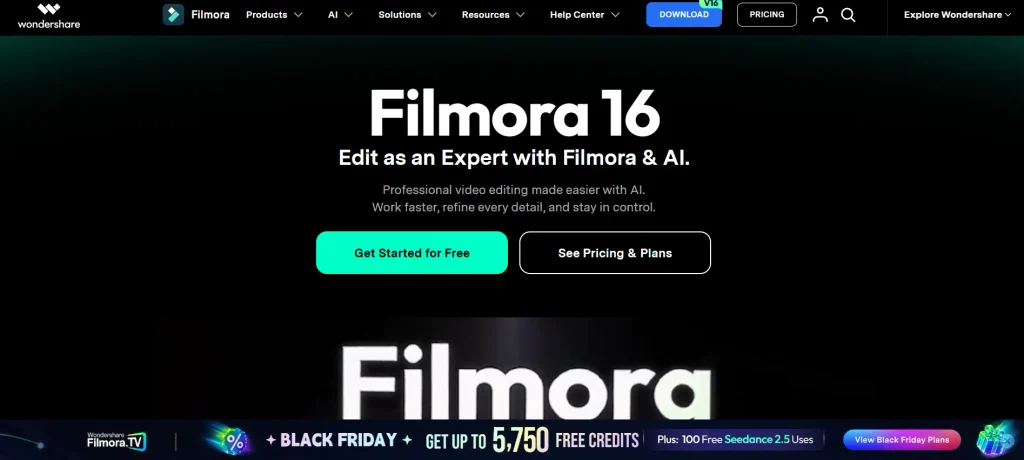
Wondershare Filmora offers a traditional video-editing workspace with a range of creative tools that are accessible to new editors. You can arrange clips on a timeline, add transitions, apply effects, and improve audio without starting with a highly technical interface. It is a useful option for beginners who want more editing control than a template-based platform provides.
Key Features
- Timeline editing for trimming, splitting, and arranging footage.
- Effects, transitions, filters, and title templates.
- Audio editing tools and sound effects.
- AI-assisted features for selected editing tasks.
Pros
- Easier to approach than many professional editing applications.
- Offers a wide range of effects and transitions.
- Combines video and audio editing in one workspace.
- Suitable for moving from basic edits to more creative projects.
Cons
- Free exports include a watermark.
- Some effects and AI features may require additional purchases or credits.
- Subscription and licence conditions need to be checked before purchase.
- Advanced projects may require a more powerful computer.
Pricing
- Basic: $9.99/month.
- Advanced: $29.99/year.
- Perpetual: $49.99 (one-time payment).
Best For
- Beginners who want a traditional timeline editor with creative effects and additional editing tools.
10. Movavi Video Editor
Website: https://www.movavi.com/
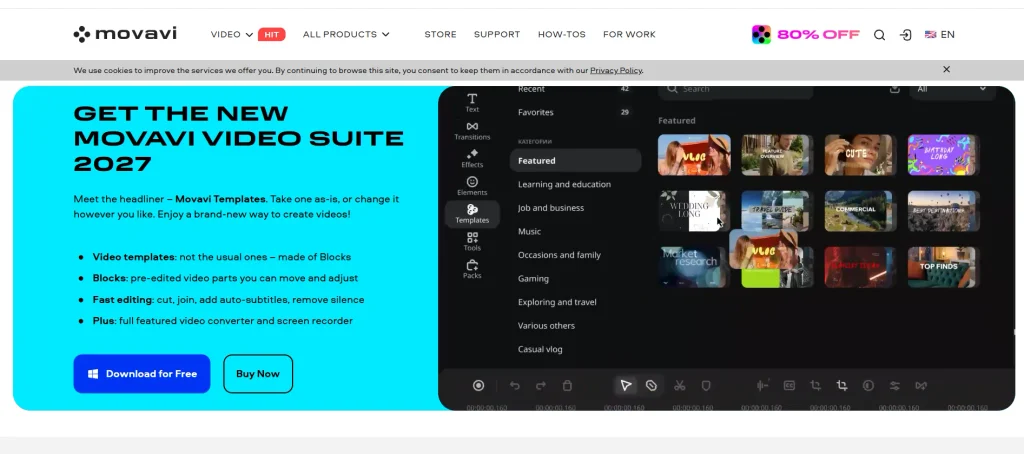
Movavi Video Editor focuses on everyday editing tasks such as combining clips, adding titles, applying filters, and improving the overall presentation of footage. Its interface is designed to make common editing operations accessible without requiring users to understand a complicated professional workflow. It can suit beginners who want to create personal videos, simple tutorials, or social media content.
Key Features
- Tools for cutting, trimming, and joining video clips.
- Titles, filters, transitions, and visual effects.
- Audio controls for music and sound adjustments.
- AI-assisted tools for selected tasks, such as subtitles and noise removal.
Pros
- Straightforward workspace for common editing tasks.
- Includes titles, transitions, and filters.
- Suitable for personal videos and basic content creation.
- Offers additional effects through selected plans.
Cons
- Full access requires a paid plan.
- Some effects and features are sold through separate packages.
- Advanced editing control is more limited than professional software.
- Trial and export restrictions should be checked before starting a project.
Pricing
- Video Editor: ₹2,199/year (including VAT).
- Video Suite + Effects: ₹3,199/year (including VAT).
Best For
- Beginners who want a straightforward editor for everyday videos, titles, transitions, and basic effects.
Comparison Table Of The Best Video Editing Software For Beginners
| Software | Best For | Free Features | Starting Price |
| DaVinci Resolve | Detailed editing and colour grading | Timeline editing, colour correction, visual effects, and audio tools | Free; Studio: $295 one-time |
| VSDC Free Video Editor | Windows-based non-linear editing | Clip editing, effects, filters, and basic colour adjustments | Free |
| OpenShot | Basic desktop video projects | Multi-track timeline, trimming, transitions, titles, and effects | Free |
| CapCut Desktop | Reels, Shorts, and social media videos | Basic timeline editing, selected effects, transitions, and captions | Free; Pro: $9.99/month |
| Kapwing | Online editing and collaboration | Browser editing, basic tools, and limited exports | Free; Pro: $16/month |
| Canva Video Editor | Template-based promotional videos | Drag-and-drop editing, selected templates, text, and design elements | Free; paid plans from ₹1,590/year |
| Adobe Express | Quick promotional and branded videos | Basic video editing, templates, and selected design assets | Free; Premium: ₹797.68/month |
| InVideo AI | Text-to-video creation | Limited AI video creation and editing access, subject to plan restrictions | Basic: $4/month |
| Wondershare Filmora | Creative timeline editing | Editing tools and effects with export restrictions | Basic: $9.99/month |
| Movavi Video Editor | Personal videos and everyday editing | Trial access with restrictions | Video Editor: ₹2,199/year |
How To Choose The Right Video Editing Software For Your Needs?
The right editor should fit the videos you plan to make and the way you prefer to work. Before deciding, consider your current editing skills, the type of content you publish, your budget, and whether your computer can handle the software comfortably.
Based on Your Editing Experience
Your first editing application should not make basic tasks difficult. If you have never used a timeline, start with an interface that makes trimming, adding text, and arranging clips easy to understand. As you become more confident, you can move towards software with advanced controls for colour, effects, and audio.
Based on Your Video Content Requirements
The type of video you create determines which tools will be useful. Reels and Shorts need vertical formats, captions, and quick effects, while tutorials may require voiceovers, screen recordings, and accurate clip arrangement. For videos created from scripts or prompts, an AI-based platform such as InVideo AI offers a different workflow from a traditional editor.
Based on Your Budget
Decide whether you need a free editor for regular use or are willing to pay for features that save editing time. OpenShot and DaVinci Resolve offer free desktop editing options, while Canva, CapCut, and other platforms provide free access with different restrictions. Before paying, check the billing period, export limitations, watermark policy, and whether the features you need are included.
Based on Your Computer’s Specifications
A feature-rich editor may not run smoothly on an older or less powerful computer. Check the software’s operating system support, RAM and processor requirements, graphics requirements, and available storage before installing it. If your computer struggles with large video files, a browser-based editor such as Kapwing may be worth considering, provided your internet connection is reliable.
Based on Available Editing Features
Make a list of the tasks you will perform regularly instead of choosing software only because it has many features. For example, check for automatic captions if you publish spoken videos, audio controls if you record voiceovers, and colour correction if you work with different lighting conditions. Also consider whether the free version includes those tools or places them behind a paid plan.
Conclusion
Choosing the best video editing software for beginners is not just about finding an application with plenty of tools. It is about understanding which features you actually need to edit your videos comfortably. Basic editing options such as trimming, splitting, adding transitions, adjusting audio, inserting text, and exporting videos should be easy to use.
Some video editors focus on simple timeline editing, while others offer ready-made templates, automatic captions, and AI-powered features. Comparing these capabilities, along with free-plan restrictions, export quality, and system requirements, can help you make a more informed decision. Start with the features you need for your current projects and choose software that also gives you room to improve your editing skills.
Frequently Asked Questions
1. Which Is the Best Video Editing Tool for Beginners?
CapCut Desktop, Canva Video Editor, and Movavi are approachable options for common beginner projects. DaVinci Resolve is worth considering if you want to learn more advanced editing skills over time.
2. What Is The Best Free Video Editing Software?
OpenShot is completely free, while DaVinci Resolve offers a powerful free version with advanced editing tools. The better choice depends on your computer and the level of editing control you need.
3. Can I Edit Videos Without Prior Experience?
Yes. Beginner-friendly editors provide tools for trimming clips, adding text, inserting music, and applying transitions. Start with short projects and learn one editing function at a time.
4. Which Video Editing Software Is Best For YouTube?
DaVinci Resolve is suitable for detailed YouTube editing, while Filmora and Movavi offer more approachable timeline-based workflows. Your choice also depends on video length, audio requirements, and computer performance.
5. Which Video Editor Is Suitable for Instagram Reels?
CapCut Desktop is a practical option for Reels because it offers social-media-focused editing tools, captions, effects, and templates. Canva is another option when your videos need designed layouts and branded graphics.
6. Is Free Video Editing Software Enough For Beginners?
Yes. Free software can handle basic editing, transitions, titles, and audio adjustments. You may need a paid plan later if you require premium effects, advanced tools, or watermark-free exports.